Upgrading CENTRAL 10.1 to 10.2
Important: Before upgrading, complete all existing workflows and pending jobs.
- On the SharePoint server, run CENTRAL setup.exe.
- When prompted, click Next on the CENTRAL Setup Wizard.
- Ensure that the System Check page displays Green check mark next to each step, and then click Next.
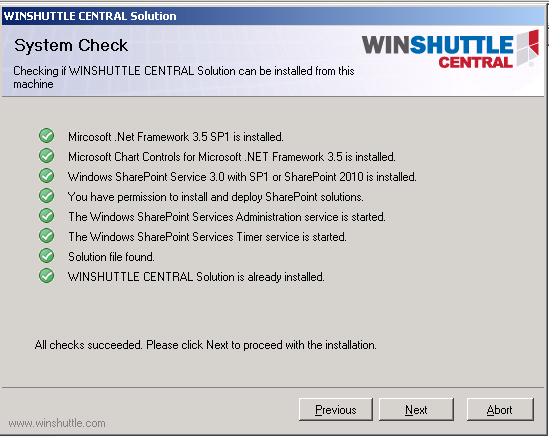
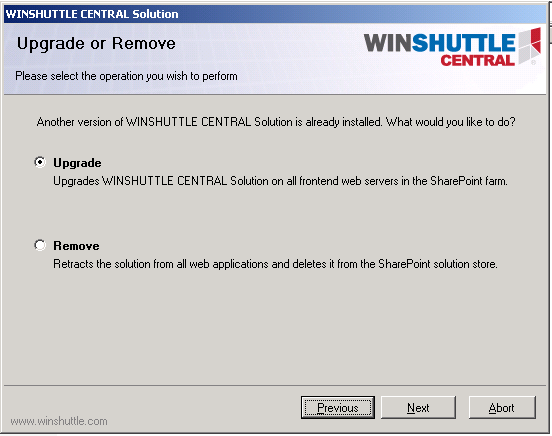
- Ensure that Upgrade is selected. Click Next.
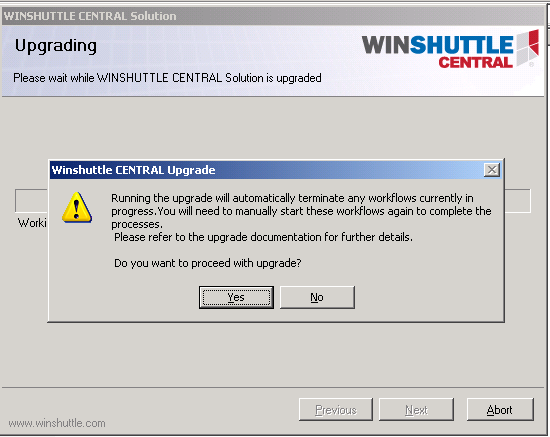
The installer displays a warning message that all the existing workflows will be terminated during the upgrade process.
The wizard displays the progress of the installation.
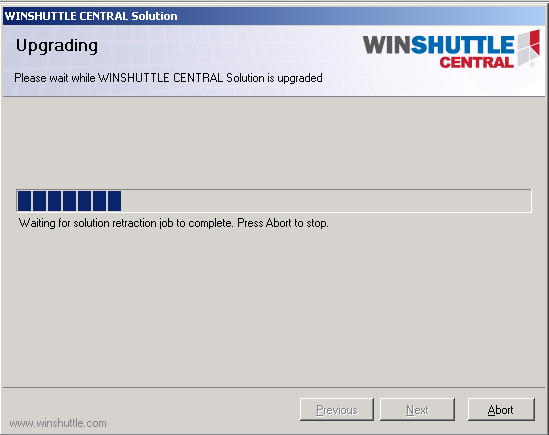
- When the upgrade completes, click Next.
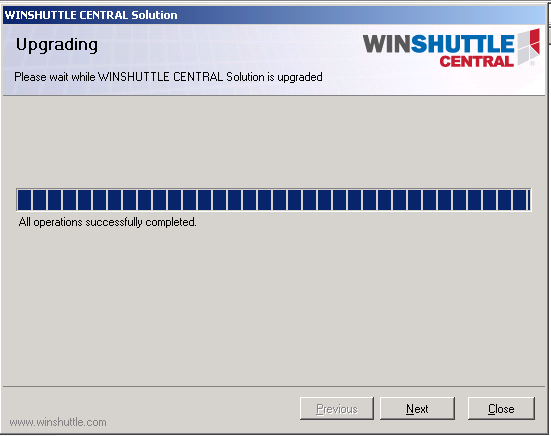
- The screen confirms that the upgrade was successful. Click Close.
- On the CENTRAL site, click CENTRAL Administration and verify the CENTRAL version.
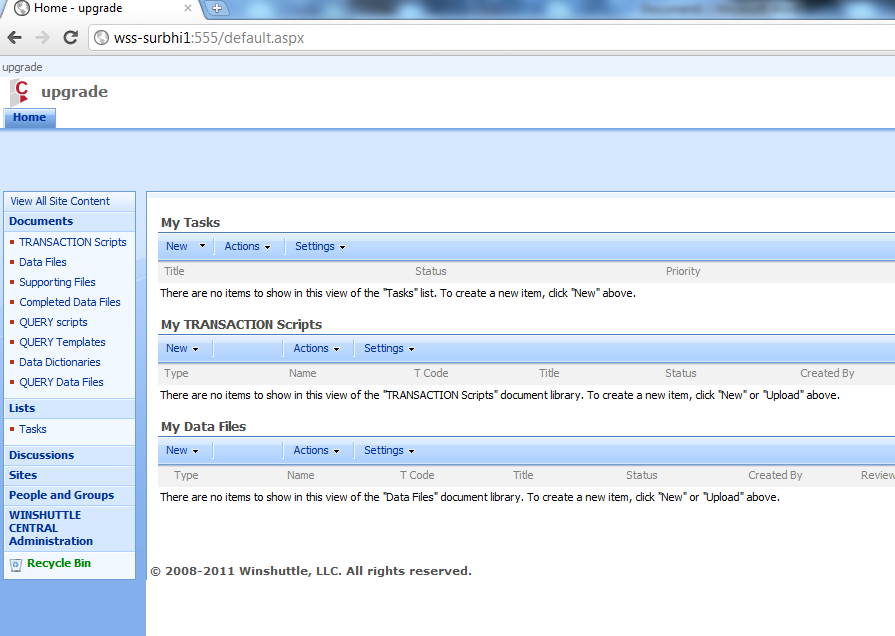
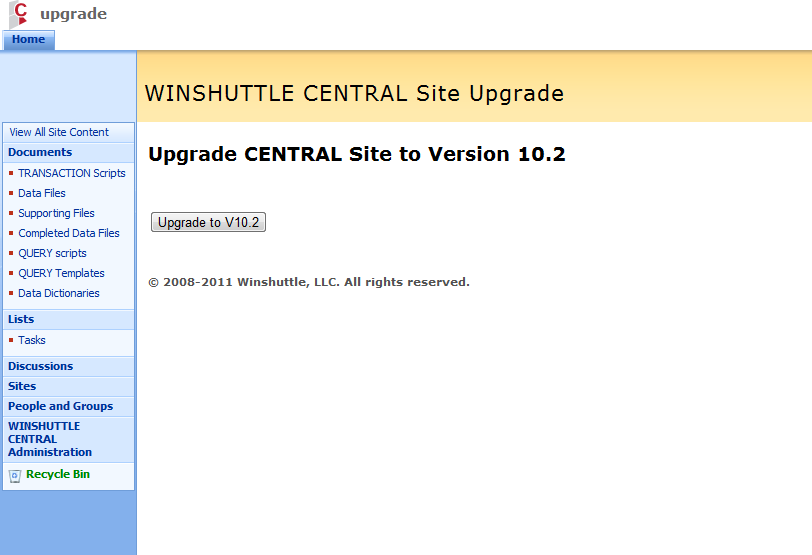
- From the CENTRAL Administration site, ensure that the current version is 10.2. The Upgrade to V. 10.2 button should be available. Click Upgrade to V. 10.2.