 and index fields are represented by an inverted key icon
  .
.Selecting the specific fields that can provide answers to your questions reduces response time and unnecessary records.
Fields represent specific data elements in databases.
After adding the Infoset/SAP query into query builder area all the underlying fields in the query are seen in one single table. For each of the fields even the table name is seen.
For Infoset query you can chose any field as output field and they get listed in the criteria pane. You can now set criteria on it. For more details on using the criteria pane, see "Using criteria to define fields".
Note: You cannot deselect the default selection fields for criteria in an Infoset. These selection fields have been set during the creation of Infosets on your SAP server.
For SAP queries, you cannot select or deselect any output or criteria fields.
However, you can modify the criteria. For example, you can change the selection type to Fixed from Runtime, change the Where Clause details, or make the criteria mandatory.
Note: AND expression and IN operator are not available for Infosets and SAP queries.
After the logical database is added to query builder area, select the output fields. The selected output fields appear in the criteria pane.
Selection fields are the fields on which the criteria is set. You cannot deselect any of the existing selection fields or add new selection fields. You can use only what is already set inside the logical database you want to use.
However, you can modify the criteria. For example, you can change the selection type to Fixed from Run time, change the Where Clause details, and make the criteria mandatory.
Note:
AND expression is not available for logical databases on Where clause builder.
In the WHERE clause builder, only those logical operators are available that are applicable to the selected field. For example, if there is a field on the selection screen of an logical database which requires a range of values (such as, FROM and TO) as input, the BETWEEN operator will be available for this field in QUERY.
Note: The following items are not supported in the current version of QUERY.
A table can contain from a few fields to hundreds. By default, primary key fields and index fields are listed at the top according to name and description. Fields that are primary keys are represented by a key iconand index fields are represented by an inverted key icon .
QUERY also offers other means for you to easily find fields in a table.
To find fields in a specific table

To select fields for output
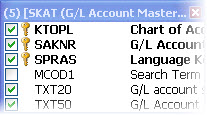
To select all fields
To deselect all selected fields
Column name |
Details |
Output |
Select this if you want the field to be displayed in the result set. If you clear the check box, you can still use it to build a Where clause and use it to filter data. |
Selection |
Select this if you want to set criteria on a field. |
Field description |
Shows the SAP field description. You can edit it and enter your own custom description. |
Technical name |
The expression table name. Field name is displayed here. |
Selection type |
Using this option you can choose either to predefine the criteria or set it during run time. |
Where clause |
Click the ellipses |
Required |
Select this option to make it mandatory to enter criteria during run time. |
Lookup type |
Select the source for the lookup values. SAP Optional. Either look for values in SAP or manually enter any value. SAP only. Select the values from the list SAP provides. List. Select values from the customized list created by the query designer. |
Padding |
Controls automatic padding for numeric values of string fields. Padding is applied automatically, for Num, Char, Numchar, and string values, but you can select to remove it. Padding improves the accuracy of your data extracts and is important for extracting the correct values from SAP. Note: If you compare non-numeric data without padding, QUERY may return unexpected results. |
SAP type |
The data type of the field in SAP table. |
To add criteria for a field
Column name |
Default value |
Selection type |
Runtime |
Required |
None |
Lookup type |
SAP optional |
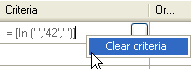
To clear criteria
To sort criteria
To reorder rows in the criteria pane
The new order appears in the runtime form and in new queries created in the mapper. You can also open legacy queries and reorder the rows.
Use WHERE clauses to limit extractions and thus reduce download time. Where clauses are especially useful in multi-table queries. If no WHERE clause is specified, all records will be returned.
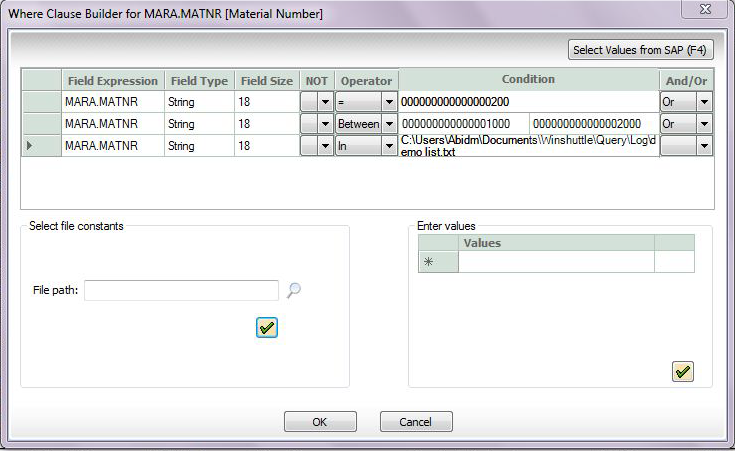
With the WHERE clause builder, only those logical operators are available that apply to the selected field. In addition, you can use AND and OR operators between clauses. You can build as many WHERE clauses as you need.
Field name |
Automatically generated, this indicates the table name and the selected field name. |
Field type |
QUERY displays the type of field, whether a string, double-byte, date or time data type. |
Field size |
QUERY displays the size of the selected field in bytes. |
Padding |
Controls automatic padding for numeric values of the string fields. Note: If you compare non-numeric data without padding, QUERY may return unexpected results. |
NOT operator |
Specify whether you want the inverse (NOT) of the specified operator. |
Operator |
The available operators change according the field that is selected. Operators include =, <, >, <=, >=, <>, Like, Between, In, Is Null, Is not Null |
Condition |
Type a condition to define the search, or press F4 to see a list of SAP values that are allowed for that field. |
OR and And expression |
Use AND or OR to apply more than one condition. |
To specify conditions in a WHERE clause
The like operator has unique behavior in QUERY. You can apply wildcards to fine-tune your query.
a_ or a? returns records for values like a1, a2, and ab, but not a12 or abcd. You can use any number of underscores the number of characters you want to match.
a% or a* returns all values that start with ‘a’, followed by any number of characters. For example, it matches a1, a2, ab, a12, and abcd.
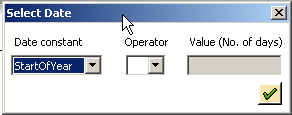
With the Select Constant/Variables option, perform date math, such as Today-120. You can also select the date from the calendar displayed or chose an SAP initialized date. Date values for criteria must always be specified in the correct date format as selected in Tools > Options > SAP Defaults.
To add SAP values to the criteria builder
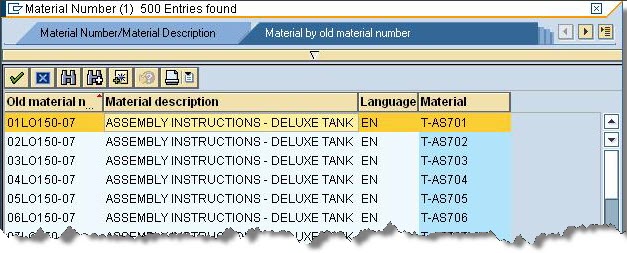
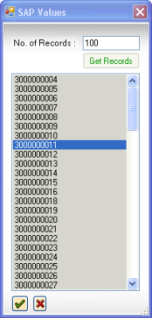
When you include run time variables as criteria values, the values must be added at run time. If the criteria was set as "Required", it is mandatory to add values at run time.
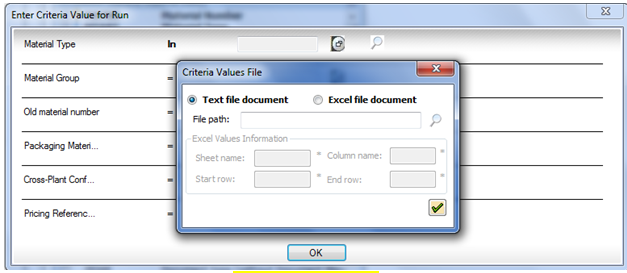
If you use the IN operator in the criteria you can select either a text or an Excel file to contain a list of values that are read in when the query is previewed or run.
This feature is available for single table and multiple table queries. Click Number of Entries  to see the number of records that the selected criteria will return.
 to see the kind of records that the query you have built will return. By default, 100 records are returned.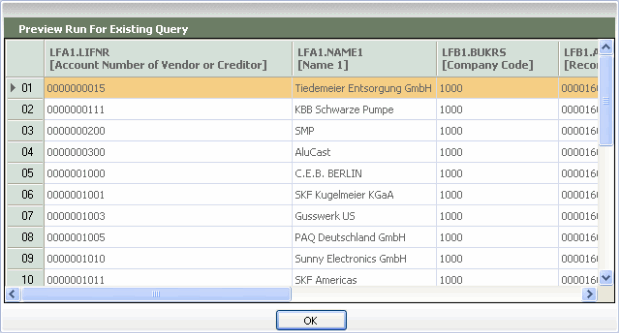
 to see the SQL expression that is created by the query.
 to launch the Where clause builder and set the criteria.