Applies to:
Advanced elements
|
The following table summarizes the Winshuttle Composer Advanced form elements, which are also sometimes called controls. You can view a list of elements by type (All, Basic, Helper, Advanced, Container) by clicking the links at right or using the navigation panel at left. |
Winshuttle Composer Advanced elements
|
|
View elements by Type |

|
Element |
Description |
|
|
Capture and record details about a workflow participant and their assignment. |
||
|
Allow process participants to attach files/documents to a form as it as it makes it way through the workflow. |
||
|
|
||
|
Integrate the Winshuttle Comments area into a form. |
||
|
Capture details related to the user that is currently working on a form. |
||
|
Push and Pull data from one form to another; used in conjunction with the ShareVis Form Hierarchy control. |
||
|
Embed a button to start another form/process within a form. |
||
|
Configure a customizable, auto-generated, serial value into a form. |
||
|
Validates data entered in the form. |
||
|
Run a query on a data source and enter the returned value(s) into a field in the form. |
||
|
Use an Oracle lookup to populate a form field or page from an Oracle Web service call. |
||
|
|
||
|
Allows the form to launch and interact with workflow. |
||
|
Display Workflow History on the form. |
||
|
Query a data source, including ODBC, OLEDB, LDAP, or SharePoint List. |
||
|
Allows the running of an SAP F4 Lookup to populate a form field. |
||
|
Map Sharepoint Users. |
||
|
Retrieve the members of a SharePoint Site Group and display details about them in a repeating table. |
||
|
Allows the user to enter a URL. |
||
|
Allows the running of a Web service script. |
||
|
Configure your form to selectively display the participant assignment menu when a form is started and as it makes its way through the workflow. |
Configuring advanced elements
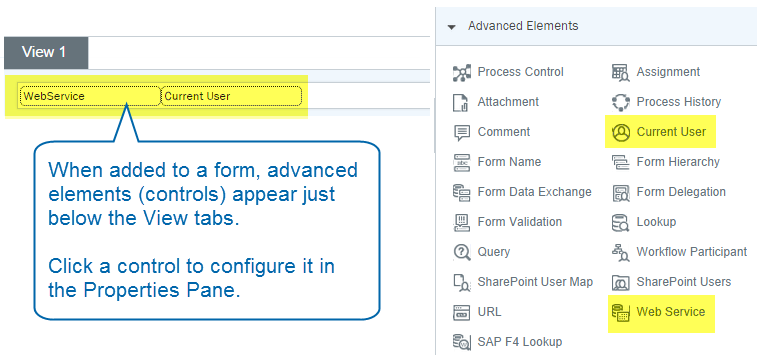
Advanced elements (also called controls) are added to the top form canvas just below the View bar.
Click the element (control) to open its properties in the Properties pane.